
You might often get frustrated when playing a game on your PC, and suddenly the game becomes laggy or stutters, even though your system meets the game's requirements. This issue might be due to throttling. Throttling is the process of reducing the processor's speed when it exceeds a certain temperature threshold. It is most common in laptops without cooling systems, such as Acer and Toshiba models, often due to dust on the laptop fan.
I want to share an application called ThrottleStop, which can help prevent throttling. You can download it from the official website by clicking here.
Tips on Using ThrottleStop
- Check the following options:
- "EIST"
- "C1E"
- "Set Multiplier"
- Adjust the "Set Multiplier" according to your laptop's capability.
- Example shown in the image below:
- Set the multiplier according to your laptop's capability. Here's how the multiplier works:
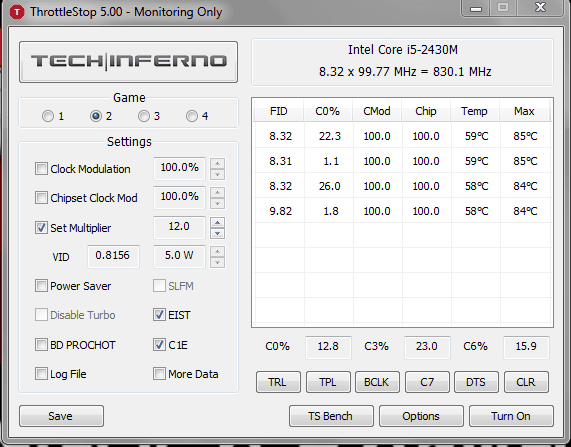
If you set the multiplier to 12, the number 12 will be multiplied by 99.77 MHz, resulting in the processor speed:
12.00 x 99.77 MHz = 1197.3 MHz / 1.2 GHz (This is the maximum speed your processor can achieve when set to a multiplier of 12).
You can set the multiplier above 12 to increase the processor's speed, but it may also increase the processor's temperature (keep the processor temperature below 95°C - 100°C to avoid damaging the processor or causing the laptop to shut down automatically).
Warning
PLEASE TURN OFF THROTTLESTOP IF THE TEMPERATURE REACHES +95°C.
ANY DAMAGE IS NOT OUR RESPONSIBILITY.
Conclusion
"When I set the multiplier to turbo, my laptop's temperature reached 100°C, and a few seconds later, the laptop shut down automatically. It is highly recommended to use a cooling fan or play in an air-conditioned room."
Tested on: Acer Aspire One 4755G
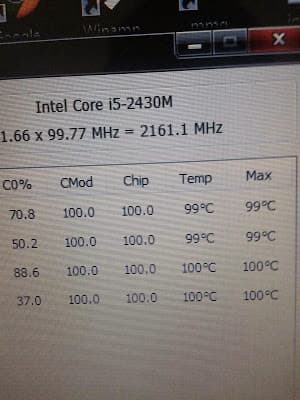
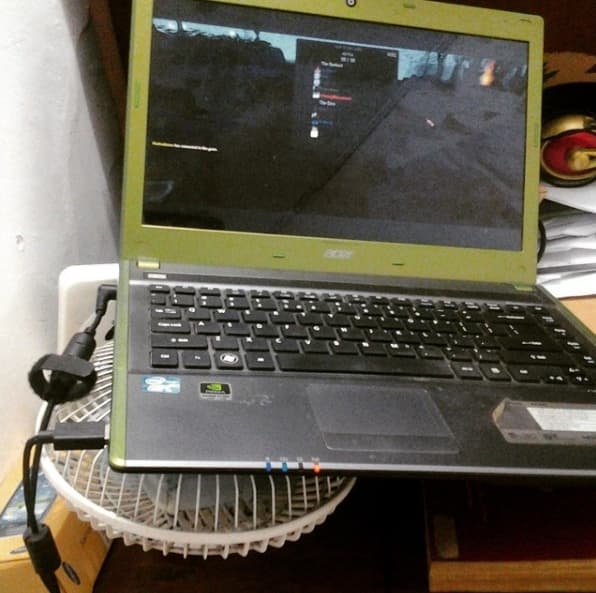
Playing Dota with ThrottleStop turned on resulted in this outcome (do not imitate).